Can you schedule a text from iPhone to Android?
Yes. Apple’s Send Later feature can schedule a message from an iPhone even when the person receiving it uses an Android phone. The important requirement is on the sender’s side: Apple says you must be using iMessage when you create the scheduled message. The recipient may use any device and is not told that you scheduled the message in advance.
That distinction clears up the most common confusion around this task. You are not scheduling an Android feature, and the recipient does not need to install an app. Your iPhone submits the message for later delivery through Apple’s Messages system. When the chosen time arrives, the recipient receives an ordinary message through the available messaging route. If the Send Later option does not appear, check the requirements below before trying third-party automation.
What you need before you start
Use an iPhone with a current version of iOS that includes Send Later, confirm that iMessage is turned on under Settings, and make sure the conversation is associated with the intended phone number or contact. An internet connection is needed when you schedule the message. Apple also says you need to be online if you later edit, delete or reschedule it.
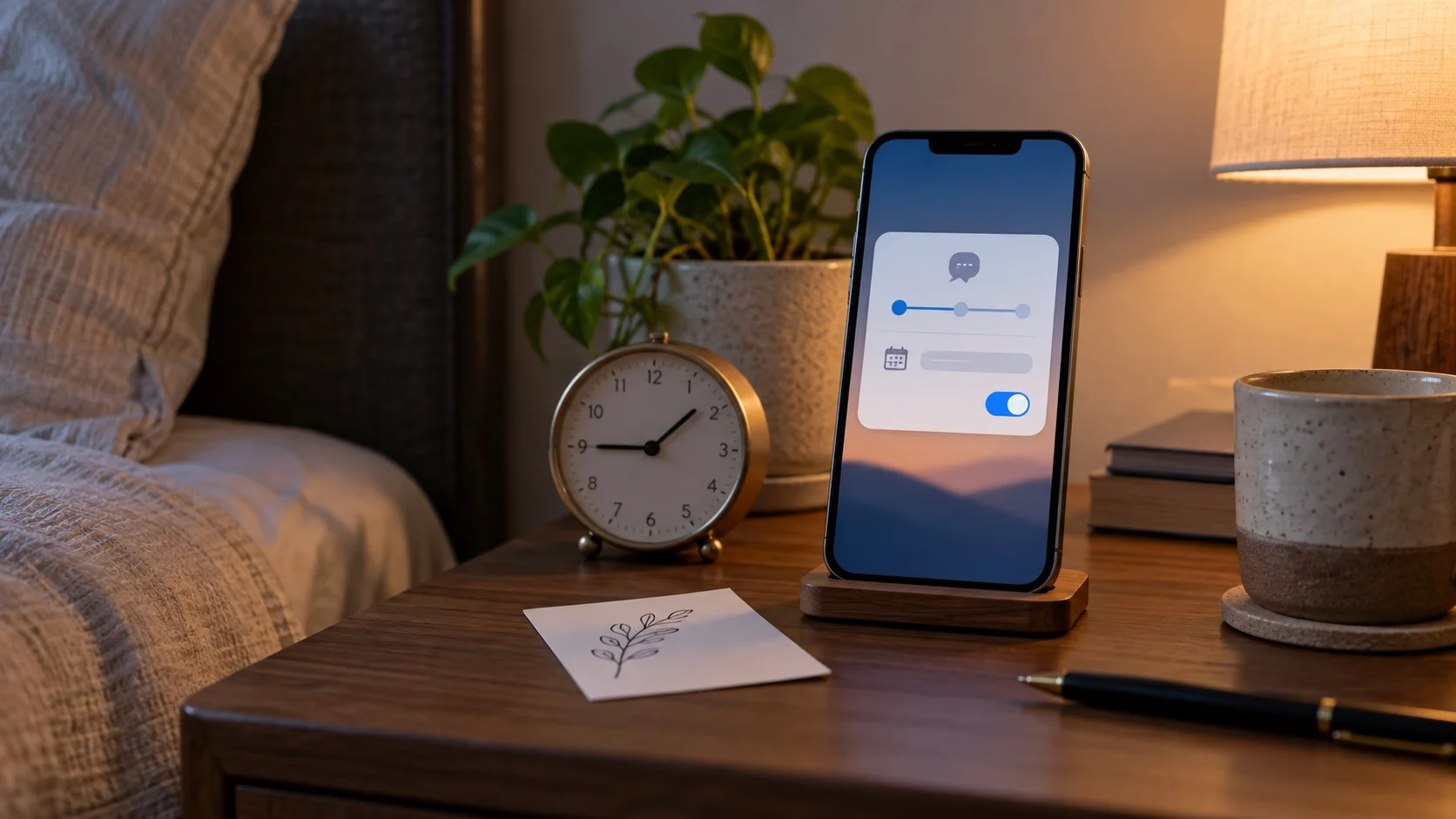
You can schedule a message up to 14 days ahead. This makes the feature useful for birthday wishes, appointment reminders, work follow-ups and messages that would otherwise arrive at an inconvenient hour. It is not a long-term reminder system for dates months away. For a message beyond the 14-day window, create a calendar reminder to schedule it closer to the date rather than relying on an unverified automation app.
How to schedule the message step by step
Open Messages and select the conversation with the Android user, or start a new conversation and enter the recipient. Tap the plus button beside the text field, then choose Send Later. If it is not immediately visible, expand the list of Messages tools. Tap the displayed date and time, choose when the message should go out, write the message, and tap the send arrow.
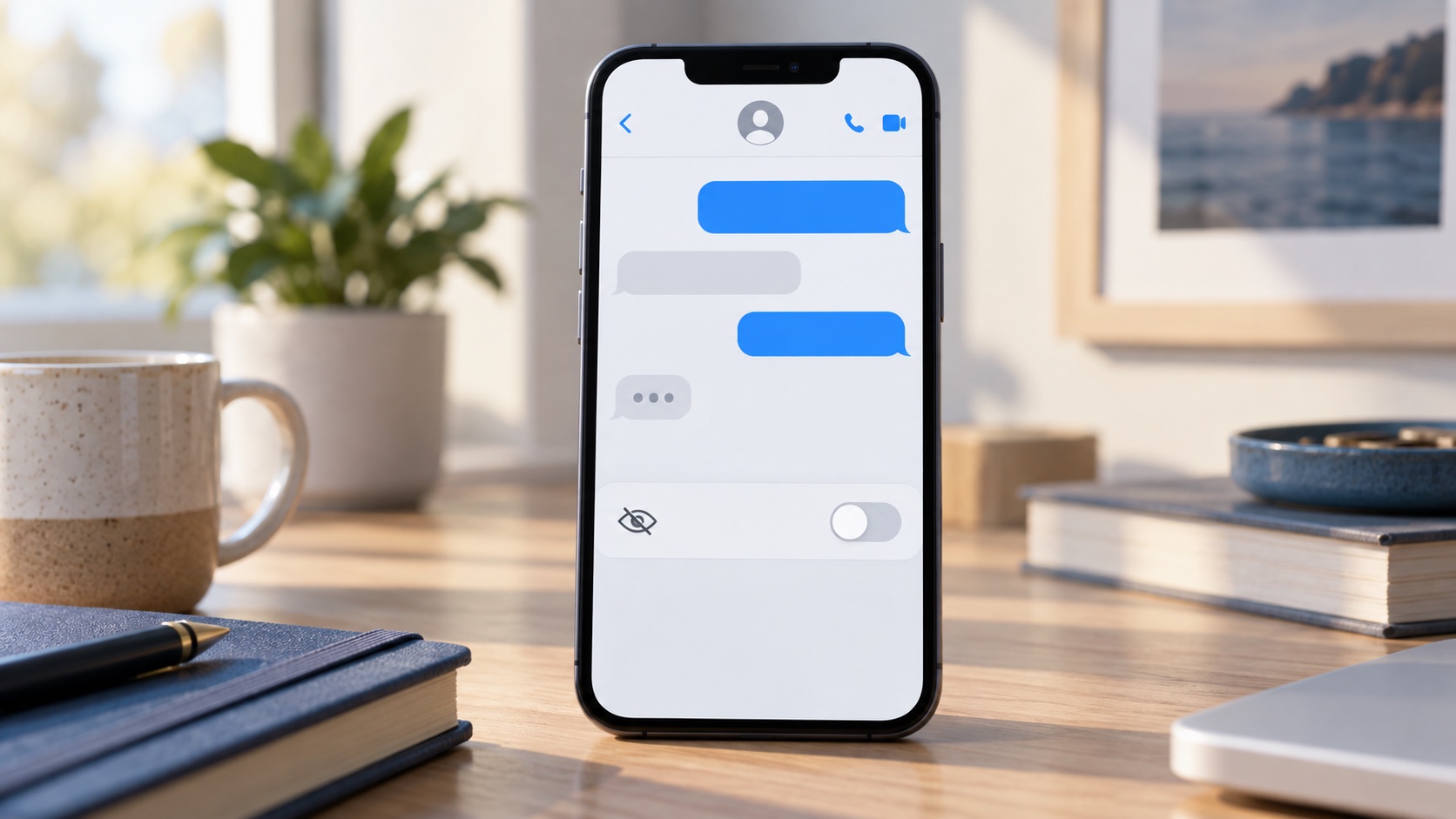
The scheduled bubble appears in the conversation with a dashed outline, and the scheduled time appears above it. That visual treatment matters: it confirms that the message is waiting rather than already delivered. Apple’s Send Later instructions say the message can still be delivered if all your devices are offline at the delivery time because the encrypted scheduled item is held on Apple’s servers until it is sent.
How to edit, reschedule or cancel it
Return to the conversation before delivery. To change the words, touch and hold the scheduled bubble, choose Edit, make the correction and confirm it. To cancel the message, touch and hold the bubble and choose Delete. Deleting it before the scheduled time prevents delivery, so verify that you are acting on the dashed scheduled bubble rather than an earlier message.
To move the delivery time, tap Edit beside the date above the scheduled message, choose Edit Time and select a new time. The same menu includes Send Message if you decide to deliver it immediately. Scheduled messages can sit below newer sent messages, so scroll to the bottom of the conversation if the item seems to have disappeared. Make changes while your iPhone is online so the updated instruction reaches Apple’s service.
Why Send Later may be missing
First update iOS through Settings > General > Software Update, then reopen Messages. Next, check Settings for the Messages controls and confirm iMessage is enabled and activated for your phone number. If the conversation is being handled only as a carrier SMS without access to the iMessage scheduling service, the Send Later control may not be available for that attempt.
Also check the plus menu carefully because less-used tools can appear lower in the list. Restarting the iPhone can clear a temporary interface problem after an update. Avoid installing an unknown keyboard, profile or messaging app just to gain scheduling. Such tools may request access to contacts or message content, and iOS background limits can make their promised delivery less reliable than Apple’s built-in path.
Will the Android user see anything different?
The recipient does not see a scheduled label or the time at which you created the message. They receive it as a normal message at the delivery time. Appearance and transport can vary with the conversation and carrier support, including modern RCS features or traditional SMS behavior, but the scheduling step remains an action performed on your iPhone.
Do not use scheduling as proof that a time-sensitive message was read. Delivery indicators, read receipts and notification settings are separate from Send Later. For an emergency, a deadline with serious consequences or a message requiring confirmation, contact the person directly and ask them to acknowledge it. Scheduling is convenient, but it cannot guarantee that the receiving phone has service, power or notifications enabled.
Privacy and practical limits
Apple says a scheduled message is encrypted and stored on its servers only until it is sent, after which it is removed and the bubble changes from its dashed scheduled state. That is useful context for ordinary messages, but you should still avoid putting passwords, one-time codes, financial details or other secrets into a text that will wait for future delivery.
Double-check the recipient, date, time zone and wording before tapping send. A scheduled message can arrive at exactly the wrong moment if travel or daylight-saving changes alter your assumptions. For better account protection across devices, see our guide to setting up passkeys on iPhone, Android and Windows. A secure account helps protect the conversations and contacts used by features like this.
A reliable checklist before you leave it scheduled
Open the conversation once more and confirm the recipient at the top, the dashed outline around the message and the delivery time displayed above it. Make sure the text does not depend on information that may change before it is sent. If it contains a meeting location, price or deadline, consider wording it as a reminder and include a request to verify the current details.
The built-in feature is best for short, low-risk reminders within the next two weeks. Use a calendar or task manager for recurring reminders, and use a business messaging platform with proper consent controls for customer campaigns. For a single personal message to an Android user, however, Apple’s Send Later option is the clearest route: schedule it in Messages, verify the dashed bubble, and edit or cancel it before delivery if plans change.
Sources
- Schedule a text message on iPhone to send later
Apple Support | Checked
- Set up Messages on iPhone
Apple Support | Checked
Editorial disclosure
Prepared with AI assistance using official Apple support material reviewed September 20, 2026. The featured image is AI-generated and shows a generic phone interface.