The quick answer
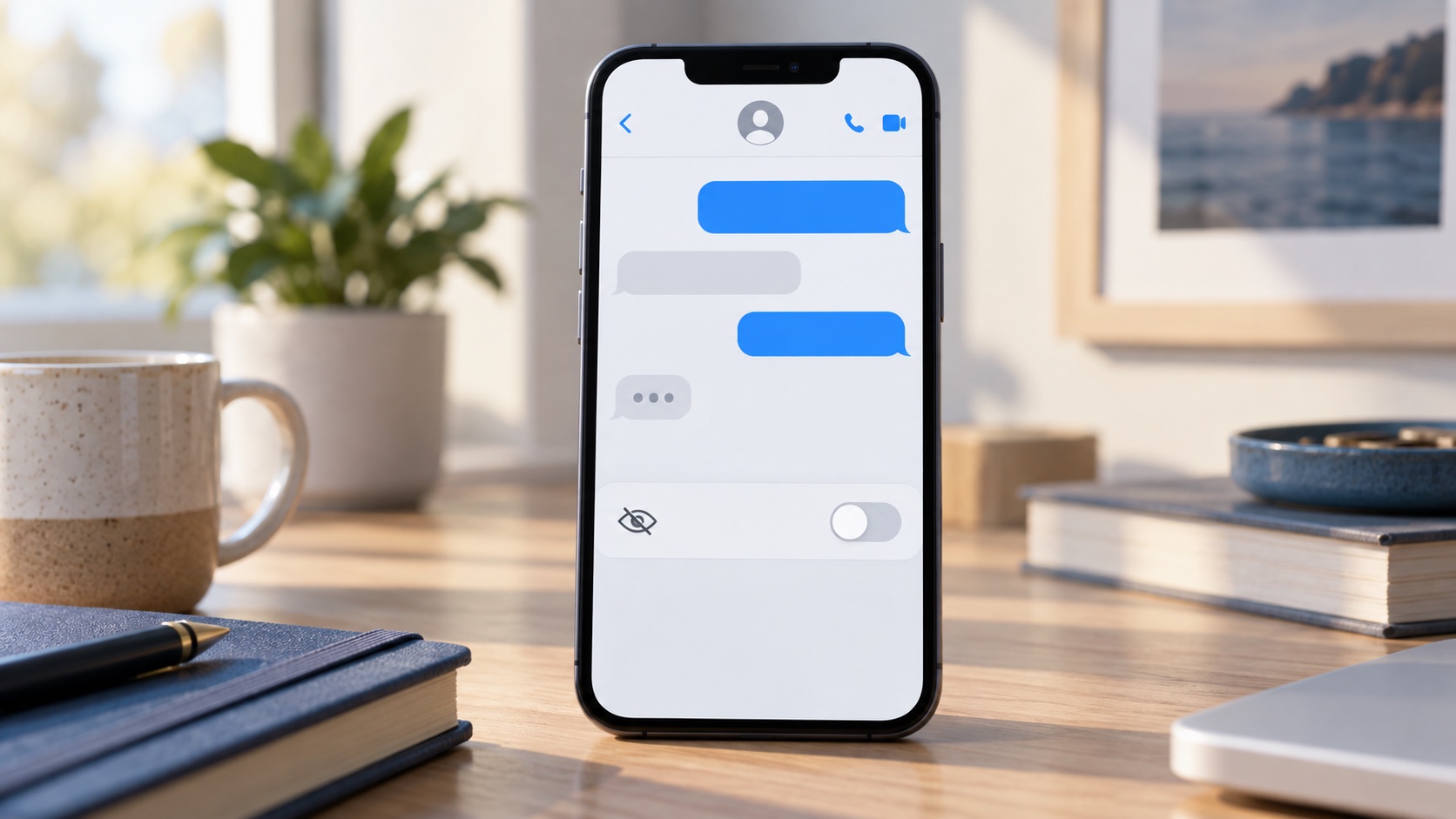
Open Messages, select the conversation, tap the person’s name or contact icon at the top, and turn off Send Read Receipts. That conversation-level switch lets you stop sharing read status with one person while leaving the general setting unchanged for other iMessage contacts.
The change controls what the other person sees beneath messages they send to you. With receipts disabled, they may see Delivered instead of Read. It does not hide typing indicators, stop delivery confirmations, erase messages or prevent you from seeing receipts that the other person chooses to share.
Turn receipts off for one conversation
In Messages, open the existing conversation with the person. Tap the contact icon or name at the top to open conversation details, locate Send Read Receipts and switch it off. Return to the thread; there is no separate save button. Apple documents these exact steps in its read receipts guide.
Make the change inside the correct conversation. A person can appear under several phone numbers or email addresses, and group threads have their own context. If you start a new thread using a different address, check its setting rather than assuming the earlier preference automatically covers every possible conversation.
Keep read receipts on for everyone else
Go to Settings > Apps > Messages and review Send Read Receipts. Leave the main switch on if most contacts should continue receiving receipts. The individual setting you turned off acts as an exception for that conversation. Apple notes that individual choices can remain separate from the general preference.
If you instead turn the main switch off, conversations with a previously enabled individual override may continue sharing receipts. This is why changing only the global switch can appear inconsistent. Review the detail screen for any person whose behavior differs from what you expect, then set that conversation explicitly.
What Delivered and Read actually mean
Delivered generally indicates that the messaging service delivered the message to a recipient device or account. Read indicates that you opened it while receipts were enabled. Neither label proves that you understood the message, agreed to a request or are available to reply. Notification previews can also reveal content without necessarily producing the behavior a sender expects.
Read receipts are a social signal rather than a security feature. Turning them off does not make the conversation anonymous or remove timestamps held by devices and services. For sensitive communication, focus on account security and the information you send. Our guide to setting up passkeys covers stronger sign-in protection for supported accounts.
Why the switch may be missing
Read receipts are associated with iMessage features. If a thread is using carrier SMS or MMS, the option may be absent or irrelevant. Confirm that iMessage is active under Messages settings and that the conversation uses the intended contact method. Apple’s Messages guide explains how conversations and message types work on iPhone.
Also update iOS, close and reopen Messages, and restart the iPhone if the detail page looks incomplete. Restrictions on a managed work device can affect account and messaging controls. Avoid installing a third-party profile or messaging utility merely to change a privacy preference that the built-in app supports.
What happens in group conversations
A group conversation does not behave exactly like a one-to-one thread, and its available indicators depend on participants and message technology. Do not assume that switching off receipts for one person changes every group that includes them. Open each relevant group and inspect its details if the distinction matters.
If a group involves Android participants, carrier messaging or RCS behavior can affect visible delivery information. The safest expectation is limited: the one-contact iMessage setting controls the supported conversation where you changed it. It is not a universal status blocker across every app, account or messaging service on the phone.
Test the setting without creating confusion
After switching it off, ask a trusted contact to send a harmless message and report whether their view changes after you open it. Testing is more reliable than guessing from your own screen because you cannot directly see the sender’s interface. Give synchronization a moment if you use Messages on several Apple devices.
Do not repeatedly toggle the option around important conversations; that can make the result harder to interpret. Set the preference, test once and leave it stable. If another Apple device uses the same account, update its software and confirm that Messages synchronization is working normally before treating a mismatch as a privacy failure.
A simple privacy checklist
Open the correct one-to-one thread, tap the contact header and disable Send Read Receipts. Leave the main Settings switch enabled if everyone else should still receive them. Check any duplicate conversation tied to another number or email address, and remember that other messaging apps have independent settings.
Use the feature to set a communication boundary, not to conceal urgent information or avoid safety check-ins. If someone needs confirmation, reply directly when appropriate. The useful result is precise control: one contact stops receiving supported read indicators, while the rest of your iMessage preferences remain as you chose them.
Common questions about the setting
Turning off read receipts does not notify the contact that you changed the preference. They simply stop receiving the supported Read status after you open later messages. Messages already marked Read do not revert to Delivered, and disabling the setting does not recall or hide anything already sent.
The setting also does not control WhatsApp, Messenger, Instagram or other apps; each service manages its own receipts. Focus modes and notification muting are separate as well. If the goal is fewer interruptions, adjust notifications or Focus. If the goal is controlling whether an iMessage contact sees that you opened a message, use the conversation-level Send Read Receipts switch described above.
When to use a broader privacy change
If you want nobody to receive read receipts, use the main switch in Settings > Apps > Messages, then inspect any conversations where you previously created an individual exception. If only one person should be excluded, keep the global switch on and change that contact inside the thread. Writing down the intended rule before adjusting several toggles can prevent contradictory overrides.
For a shared or supervised phone, discuss privacy expectations with the account owner before changing messaging settings. Read receipts can be useful for caregivers, travel coordination and urgent work, but they can also create pressure to answer immediately. Choose a stable setting that matches the relationship, communicate directly when confirmation matters, and revisit the choice if the phone number or Apple Account changes.
Sources
- Turn read receipts on or off in Messages on iPhone
Apple Support | Checked
- Send and reply to messages on iPhone
Apple Support | Checked
Editorial disclosure
Prepared with AI assistance using official Apple support documentation reviewed September 22, 2026. The featured image is AI-generated and shows a generic interface.