The quickest way to take a Windows screenshot
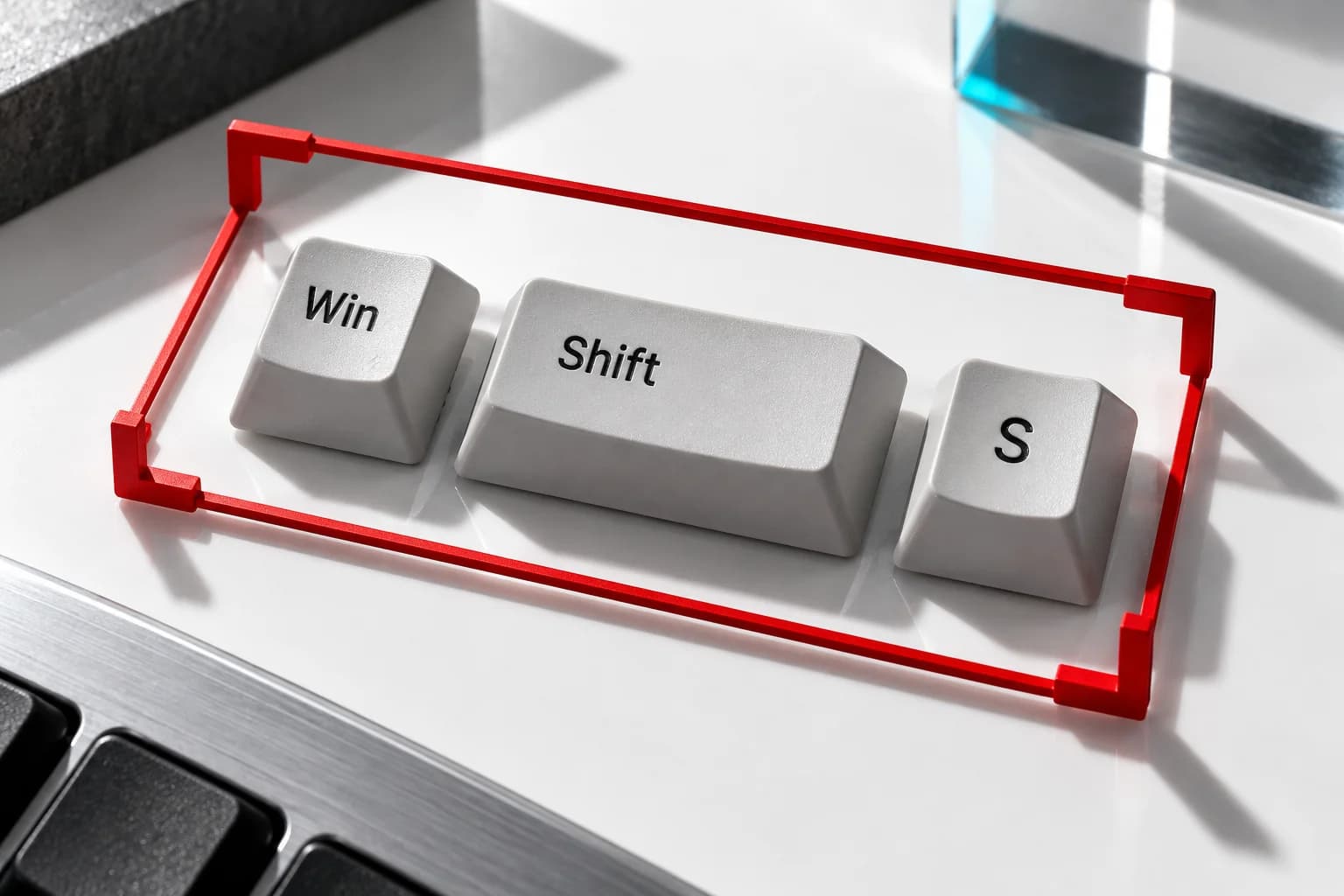
Press Windows + Shift + S, select the area you need, then paste it with Ctrl + V into an app that accepts images. To save a full-screen capture directly to a file, use Windows + PrtScn. Microsoft's Windows shortcut reference distinguishes those two actions: one captures a selection to the clipboard; the other saves a screenshot under Pictures.
That distinction explains much of the confusion around screenshots. Seeing a capture animation does not tell you whether you have a saved file, a clipboard image or both. Choose your method according to the destination: a quick reply, an attachment you can find tomorrow, or a record that needs careful checking. This guide focuses on Windows 11; older app versions can look different.
Capture just the part you need
Bring the relevant content into view. Press Windows + Shift + S, choose the rectangular capture mode, then drag around the area you want. After capture, select the notification to open the editor, or paste the image into your destination. Microsoft's screen-capture walkthrough also describes free-form, window and full-screen modes, plus saving or copying an edited result.
For a support request, include the complete error message and enough surrounding interface to identify the problem. A crop showing only 'Something went wrong' gives the recipient little to investigate. Include the app name when relevant, but leave private conversations and unrelated browser tabs outside the selection. Add a sentence describing what you clicked immediately before the error.
Before sending, inspect the image at the size the recipient will see. If the important text is tiny, make a tighter capture instead of sending your entire desktop. A screenshot should reduce the work needed to understand your question, not create a second puzzle.
Capture one window or save the whole screen
Click the window you need, press Alt + PrtScn, then paste into an image-capable app. For a direct full-screen file, Windows + PrtScn saves to the Screenshots subfolder inside Pictures. Both behaviors appear in Microsoft's keyboard reference. A laptop may label the capture key PrtSc or PrtScn rather than Print Screen.
A window capture suits a single dialog or application. A whole-screen image is useful when the relationship between several windows matters. For example, a hypothetical display-layout problem may require a broad view, while a password-reset error usually does not. Check which other information becomes visible before choosing the larger capture.
Give saved files names that explain their purpose, such as 'account-error-before-retry.png'. If you capture a second state after changing a setting, label that separately. Keeping the two versions identifiable is more helpful than accumulating nearly identical numbered images and trying to remember their order later.
Where screenshots go, and how to keep the right copy
Current Windows 11 Snipping Tool documentation describes automatic saving to a Screenshots folder. Open the tool's three-dot menu and Settings to inspect the automatic-save behavior and destination on your installation. You can also use Save as for an additional copy with a chosen name and location. These controls are described in Microsoft's Snipping Tool guide. Do not assume another PC uses your folder settings.
When you cannot find an image, first remember which shortcut you used. Try pasting into Paint or another image-capable application before concluding that capture failed. Then check the actual save location. A good habit is to open the saved file once before attaching it, especially when you have several similar captures.
Treat the clipboard as a temporary handoff, not your filing system. Microsoft documents optional clipboard history, available through Windows + V. History must be enabled, and some items may not be retained. It can help recover a recent copy, but a clearly named file is the better choice for something you must keep.
Capture menus and full webpages
For a menu that disappears while you prepare a screenshot, open Snipping Tool and use its Delay control before starting a capture. A short countdown gives you time to reopen the menu. Microsoft's tool instructions explain this delayed workflow. Prepare the page first so you are not trying to navigate and frame the image at the same time.
A long webpage needs a different approach. In Microsoft Edge, press Ctrl + Shift + S and choose Capture full page, then save or copy the result. This is Edge's browser screenshot feature, not the Windows shortcut, and availability can vary by browser version. Notice the first key: Ctrl for Edge, Windows for the operating-system capture.
Read through a long captured page before relying on it. Check that the section you wanted is actually present and that headings remain legible. For a research note, record the page address and access date alongside the image; a screenshot alone is a poor way to retrace a source later.
Why Print Screen may behave differently
On Windows 11, Print Screen can open screen snipping instead of immediately copying the whole display. Check Settings, Accessibility, Keyboard for the Print Screen setting. Microsoft's shortcut documentation describes that configurable behavior. It is not necessarily a broken key when a selection overlay appears.
If your keyboard lacks PrtScn, Microsoft's hardware shortcut note lists Fn + Windows + Space Bar as an alternative, depending on the device. You can also search the Start menu for Snipping Tool and open it directly. Consult your keyboard's documentation when keys share functions; do not assume every laptop uses the same Fn arrangement.
Troubleshoot without changing unrelated settings
Separate capture problems from saving problems. If you can paste the image, capture worked and the next question is storage. If Snipping Tool opens from Start but not from your keys, focus on the shortcut or keyboard configuration. Write down what actually happens instead of repeatedly changing settings without checking the result.
If the application itself will not work, Windows offers repair options for supported apps. Open Settings, Apps, Installed apps, then the app's menu and Advanced options; choose Repair if available. Microsoft explains that not every app exposes these controls. Start with repair rather than broader system changes, and read any reset warning before going further. On a managed work or school PC, ask the administrator when a control is unavailable.
Check privacy and usefulness before you share
Where available, Snipping Tool's Text actions can copy recognized text or quickly redact email addresses and phone numbers, according to Microsoft's feature guide. Still inspect the entire image yourself. An order number, a visible browser tab or a message preview can matter even when an automatic tool does not flag it.
For sensitive material, the simplest editorial precaution is to avoid including it in the capture at all. Do not use a decorative highlight as a privacy measure. After editing, reopen the exact file you plan to send and check the corners as well as the center. If automatic saving retained an original, keep that separate from the version intended for sharing.
Finish with three questions: does the image show the relevant information, can the recipient read it, and is everything visible appropriate to share? Once those answers are yes, attach the file or paste the image and add a short explanation. The best screenshot is not the biggest one. It is the one that makes the next step obvious.
Sources
- Keyboard shortcuts in Windows
Microsoft Support | Checked
- Copy the window or screen contents
Microsoft Support | Checked
- Use Snipping Tool to capture screenshots
Microsoft Support | Checked
- Using the clipboard
Microsoft Support | Checked
- Screenshot in Microsoft Edge
Microsoft | Checked
- Keyboard shortcut for print screen
Microsoft Support | Checked
- Repair apps and programs in Windows
Microsoft Support | Checked
Editorial disclosure
Written with AI assistance using Microsoft documentation checked September 9, 2026. Instructions were researched, not hands-on tested on a Windows PC; controls can vary with Windows, browser and app versions, hardware and organizational policies. Examples and workflow recommendations are editorial guidance. The featured image is an AI-generated concept illustration, not a photograph of tested hardware or a software screenshot.