Start With A Clean Setup
Before testing any new camera feature, clean the lenses, charge the phone, update to the current iOS version, and decide what kind of photos you actually take. Apple says iPhone 18 Pro adds a 48MP Fusion Main camera with variable aperture, plus A20 Pro performance and new Siri AI features Apple iPhone 18 Pro announcement. Those features are useful only if you learn how they change real shots.
Do your first test at home, not during a once-in-a-year moment. Photograph a person, a pet, food, a window-lit room, a night scene, and a moving subject. Save the results in a small album. This gives you a baseline before you rely on the phone for travel, events, family photos, or work content.
Step 1: Learn What Variable Aperture Changes
Apple says variable aperture comes to iPhone for the first time on iPhone 18 Pro, giving the Main camera more control over light and depth of field Apple iPhone 18 Pro announcement. In practical terms, aperture affects how much of the scene appears sharp and how much light reaches the sensor.
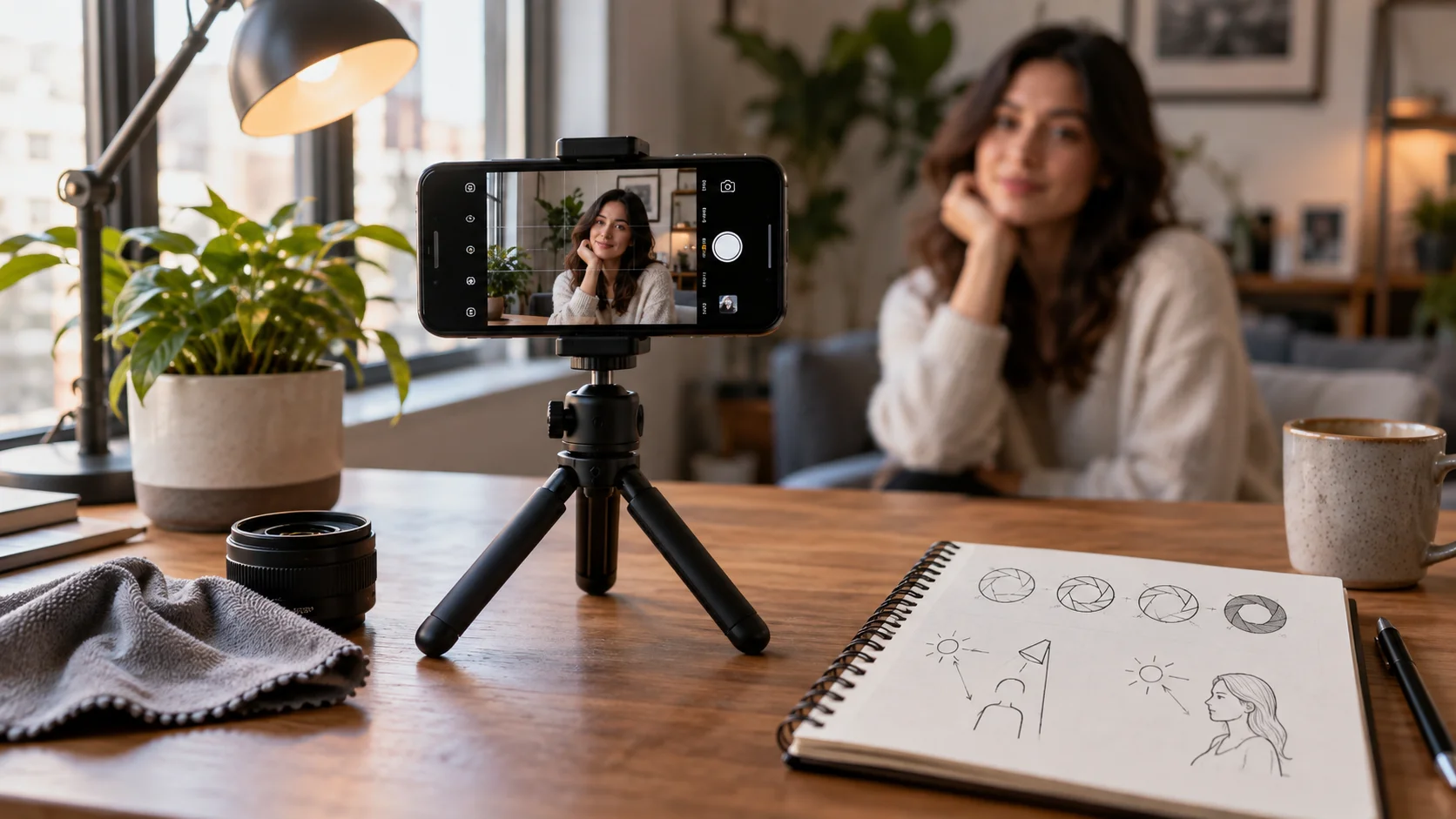
Test this by photographing the same subject at different distances. Place a mug or plant on a table, stand a few feet away, and capture one shot with a busy background and one with a cleaner background. Look at subject separation, highlight detail, and whether the background blur feels natural. The goal is not to memorize technical numbers. The goal is to know which look fits your style.
Step 2: Build Three Camera Presets In Your Head
You do not need a complicated system. Build three mental presets: fast everyday photo, controlled portrait, and low-light scene. For everyday photos, prioritize speed and composition. For portraits, slow down, tap to focus, watch the background, and take several frames. For low light, brace the phone, avoid mixed lighting when possible, and review sharpness before leaving.
This habit matters more than feature chasing. A technically advanced camera still needs stable hands, good timing, and decent light. Most disappointing phone photos happen because the photographer rushed, ignored the background, or trusted the screen preview without checking the final image.
Try a simple drill. Take the same portrait in window light, overhead room light, and mixed evening light. Then compare skin tone, background blur, motion, and noise. You will quickly learn when the camera needs more light, when to move the subject, and when to stop fighting the scene.
Step 3: Use Reference Image When Accuracy Matters
Apple says Reference Image can provide an unalterable reference photo so users can compare what the camera sensor captured against edited versions Apple iPhone 18 Pro announcement. This is most useful when image authenticity matters: product photos, journalism, insurance documentation, resale listings, workplace evidence, or before-and-after projects.
Use it intentionally. If you are documenting damage, a product condition, or a meaningful event, capture a reference version before editing. Keep it in the original album and avoid mixing it with heavily processed versions. The feature does not replace judgment, but it gives you a stronger record when edits could confuse the story.
Step 4: Test Battery Before A Long Shoot
Apple says iPhone 18 Pro models improve battery life, with Pro Max eSIM-only configurations reaching up to 45 hours of video playback under Apple's stated conditions Apple iPhone 18 Pro announcement. Real photo and video sessions are different because the screen, camera, cellular connection, and editing tools all draw power.
Before a trip or event, run a one-hour test. Shoot photos, record short videos, use the camera in bright light, and edit a few images. Note the battery drop. If the phone drains faster than expected, bring a power bank or reduce screen brightness. Better to learn this on a normal afternoon than during a wedding, concert, or family day out.
Also test storage. High-resolution photos and video can fill a phone quietly. Check available space before the shoot, delete old downloads, and make sure cloud sync is not paused. A full phone at the wrong moment is more frustrating than a missing camera feature.
Step 5: Let Siri AI Help With Workflow, Not Taste
Apple says Siri AI in iOS 27 is designed to become more personal, conversational, and aware of context, including camera-related assistance Apple iPhone 18 Pro announcement. Use that for organization and reminders rather than outsourcing creative judgment.
For example, ask for help finding photos from a trip, setting a reminder to back up images, or organizing a shoot list. Apple is also applying Apple Intelligence to more personalized health and fitness experiences, which is another reminder that the assistant layer is becoming broader across daily routines Apple health and fitness AI announcement. But decide composition, timing, and final edits yourself. AI can speed up the workflow. It should not flatten your taste into whatever the phone thinks looks popular.
A useful workflow is to ask for administrative help after shooting: find all beach photos from Saturday, remind me to export the originals, or make a list of shots I still need for this listing. That keeps AI in the assistant role while you keep the creative decisions.
Step 6: Create A Backup Habit
New camera features encourage people to shoot more, which makes backup more important. Before you start using the phone as your main camera, check cloud storage, local exports, and whether full-resolution originals are being preserved. A better camera is less useful if your photos become hard to find or easy to lose.
Use simple album names: family, work, travel, receipts, reference images, and favorites. Delete obvious mistakes weekly. Export important projects before editing heavily. The best photo system is the one you can understand six months later.
For important shoots, use the three-copy rule in a lightweight way: keep the phone original, sync to cloud storage, and export a copy to a computer or external drive. You do not need a professional archive to protect meaningful photos. You need a repeatable habit.
Bottom Line
The iPhone 18 Pro camera upgrade is not only about specs. It is about learning how the new controls behave before an important moment. Test aperture, portraits, low light, reference images, and battery in ordinary conditions first.
Once you know the phone's strengths, your first serious shoot becomes much easier. Clean the lens, slow down, watch the background, preserve originals when accuracy matters, and build a backup habit. The best camera feature is confidence.
Treat the first week like practice. Photograph ordinary scenes, compare results, and keep notes on what works. By the time a real moment arrives, the controls will feel less like a feature list and more like muscle memory.
Sources
- Apple debuts iPhone 18 Pro and iPhone 18 Pro Max
Apple Newsroom | Published | Checked
- Apple advances health and fitness capabilities using Apple Intelligence
Apple Newsroom | Published | Checked
Editorial disclosure
This independent iPhone camera how-to guide was written in Codex for editorial review using cited Apple sources. It is not sponsored by Apple.