Start With The Basics
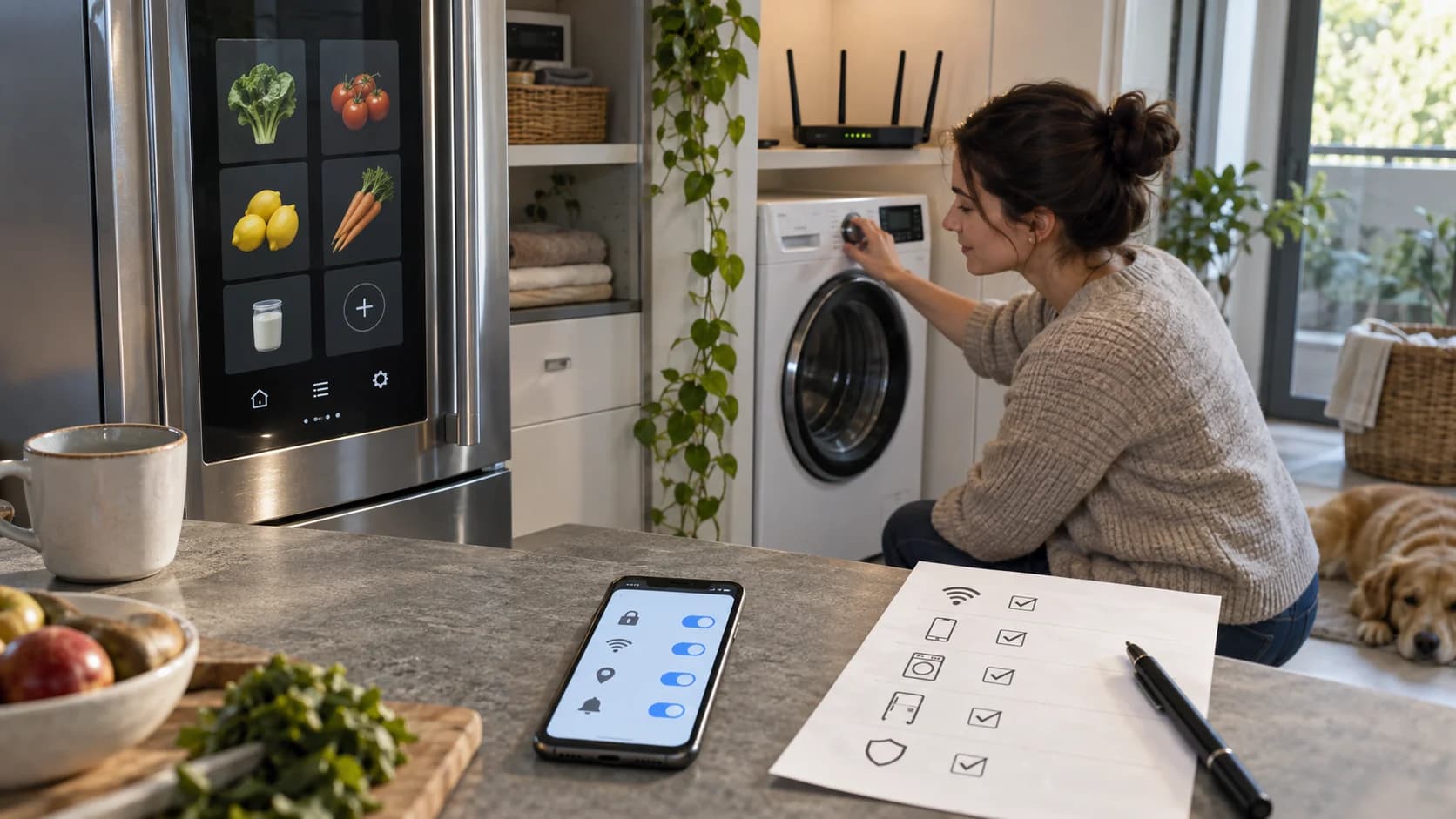
Smart appliance setup should begin before you connect the appliance to Wi-Fi. Samsung says select refrigerators and laundry appliances are receiving Tizen OS 10.0 updates with AI-focused features, newer Bixby, updated screens, and model-dependent availability Samsung September appliance update. That is useful, but every connected feature adds settings to manage.
Your first job is to make the appliance a good appliance. Confirm cooling, washing, drying, alerts, controls, warranty registration, and basic operation. Then add smart features in layers. If something feels confusing, pause before linking extra accounts or turning on optional sharing.
Step 1: Secure The Account First
Use a strong password, turn on multi-factor authentication if available, and avoid sharing the main account password with everyone in the home. A smart fridge or washer may seem harmless, but the account can connect to routines, apps, devices, and household data.
Create a small setup record: account email, recovery method, device model, purchase date, warranty link, and who has permission to change settings. Keep it somewhere safe. This makes future troubleshooting easier and prevents one person from becoming the only human who understands the kitchen.
If the appliance supports multiple users, give people their own access instead of sharing one login. Shared passwords are convenient at first and messy later. Individual access makes it easier to remove a device, change permissions, or troubleshoot who changed a setting.
Step 2: Review What The Appliance Can See
Some smart refrigerators use cameras or food recognition features. Samsung has described AI Vision and Family Hub updates that expand food recognition and personalized widgets on supported models Samsung Family Hub AI update. That can help with meal planning, but it also means the appliance is interpreting household information.
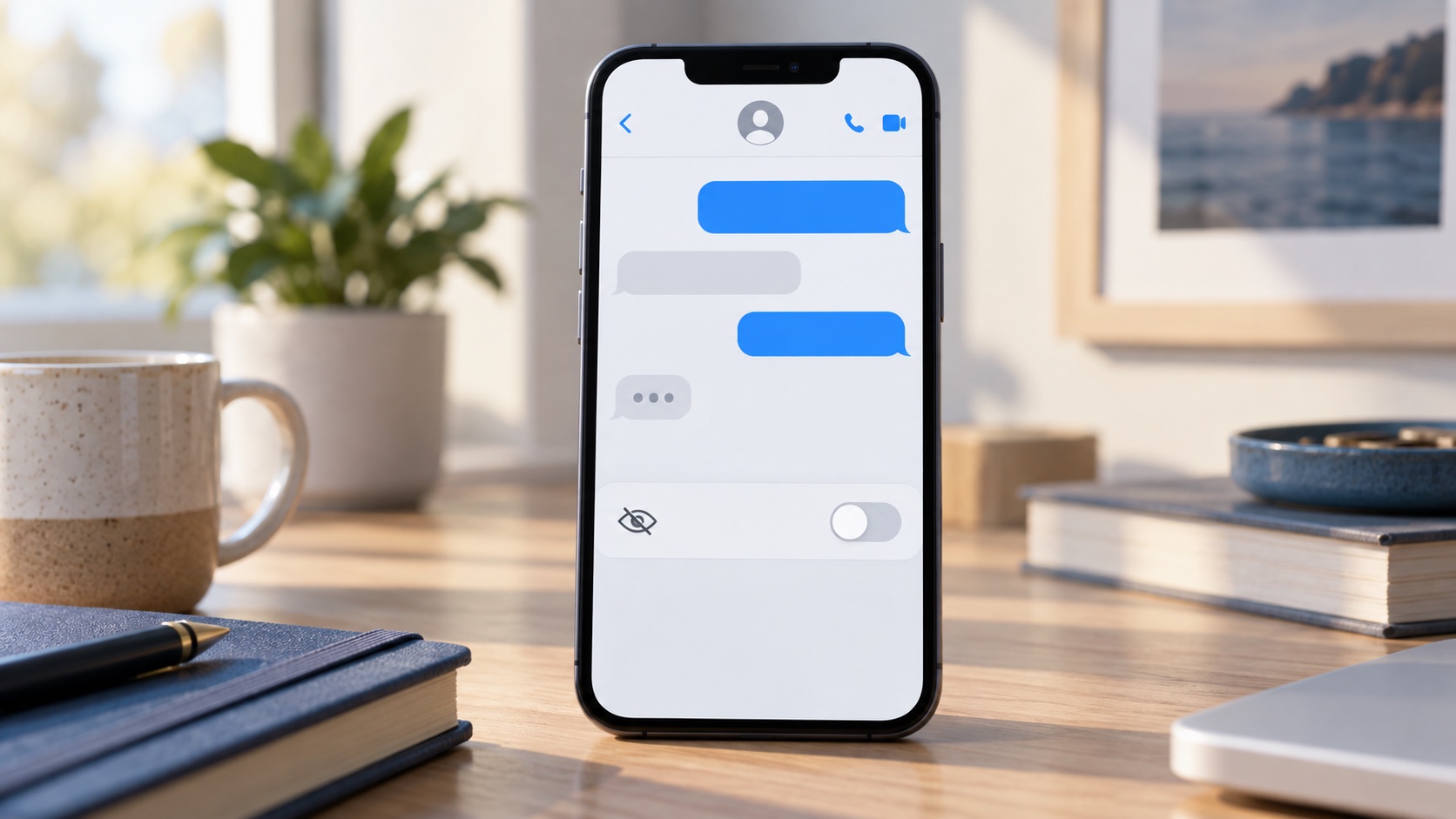
Check whether cameras, food recognition, shopping lists, calendars, voice controls, or usage data are enabled. Turn off anything you do not use. Useful smart home privacy is not about rejecting every feature. It is about enabling features intentionally instead of accepting every default.
Step 3: Separate Convenience From Control
Some features are informational: status alerts, cycle completion notices, temperature warnings, or maintenance reminders. Others are control features: starting a cycle, changing settings, ordering items, or triggering routines. Treat those differently.
Start with informational alerts first. They are usually lower risk and immediately useful. Add control features only after you understand who can trigger them and from where. A laundry notification is convenient. Remote control without clear household rules can become annoying or risky.
For example, an alert that the washer finished is helpful. A remote command that starts an appliance should be used more carefully, especially in a home with children, pets, guests, or shared living arrangements. Convenience should never make the appliance harder to supervise.
Step 4: Check The Household Screen
A refrigerator screen can be shared by adults, children, guests, cleaners, and visitors. That makes it different from a personal phone. Before adding calendars, notes, photos, grocery lists, or reminders, ask whether that information belongs on a public household screen.
Use neutral labels and avoid sensitive reminders. If the screen supports profiles or permissions, set them up. If it does not, keep private information off the appliance. A shared kitchen screen should help the household, not expose everything about the household.
Step 5: Update On Your Schedule
Samsung says updates roll out in phases and features can vary by model, market, and year Samsung September appliance update. That means not every appliance gets every feature at the same time. Do not assume a friend's settings match yours.
When an update arrives, read the summary, note what changed, and check the privacy or account settings afterward. New features sometimes add new defaults. A five-minute review after each major update can prevent surprises months later.
If an update adds a feature you do not understand, leave it off until you can explain what it does. That rule is simple and powerful. A smart home should become smarter because you chose useful tools, not because every new option was enabled on arrival.
Step 6: Make A Guest And Child Plan
Think about who can physically reach the appliance. Guests may see a kitchen screen. Children may press buttons. Roommates may use laundry controls. A connected appliance lives in shared space, so setup should account for people who are not the account owner.
Keep sensitive notes, calendars, and account details off shared displays. If parental controls, lock modes, or screen restrictions are available, review them. If they are not available, use simpler settings and avoid placing private household information on the appliance in the first place.
Step 7: Keep Offline Use Possible
Every smart appliance should still be usable when the internet is down, an app is unavailable, or an account is temporarily locked. During setup, confirm which core functions work from the physical controls. Everyone in the household should know how to run the basic cycle, adjust temperature, silence noncritical alerts, and find the manual.
This is not pessimism. It is good home design. The smarter the appliance, the more important the fallback becomes. Convenience is best when it adds options instead of replacing simple controls.
Put the manual link, model number, and support information in a shared household note. If the screen freezes or the app changes, you should not need to search through old emails just to wash clothes or adjust a fridge setting.
Step 8: Review Every Few Months
Set a reminder every three or four months to review connected devices. Remove unused appliances from apps, check account access, update passwords if needed, and confirm alerts still make sense. Smart home clutter builds slowly.
Also review whether the feature is still useful. If the food recognition tool saves time, keep it. If nobody uses the screen widgets, simplify them. If a voice assistant misfires, reduce its permissions. A private smart home is usually a maintained smart home.
Bottom Line
AI appliances can be genuinely helpful, especially when they reduce routine friction. The safest setup is deliberate: secure the account, understand what the appliance can see, turn on useful alerts first, and keep private information off shared screens.
Do not let the setup wizard make every decision for you. Connect what helps, disable what does not, and keep basic appliance control available offline. That gives you the useful side of AI appliances without turning the kitchen into a settings maze.
A good smart home setup should feel calmer after the first week, not more complicated. If the appliance adds reminders, clearer controls, and less food or energy waste, keep the feature. If it adds noise, turn it off.
Sources
- Samsung Enhances Long-Term Value of Refrigerators and Laundry Appliances With AI-Focused Software Updates
Samsung Global Newsroom | Published | Checked
- Samsung Expands AI Capabilities of Bespoke AI Refrigerator Family Hub With Major Updates
Samsung Global Newsroom | Published | Checked
Editorial disclosure
This independent smart home how-to guide was written in Codex for editorial review using cited Samsung sources. It is not sponsored by Samsung.