The reliable cross-platform method
The dependable way to share a Wi-Fi password from iPhone to Android is to reveal the saved password on the iPhone, then type or paste it into the Android phone. Apple’s nearby Share Password pop-up is designed for Apple devices and contacts, so it should not be treated as the normal route for an Android recipient.
This manual method works with most home and small-office networks because it uses the network name and password that the router already expects. You need permission to share the network, an iPhone that has the password saved, and the iPhone passcode, Face ID or Touch ID. For a managed workplace, school or hotel network, ask the administrator or use the official guest process because credentials and sign-in pages may be tied to individual users.
Reveal a saved Wi-Fi password on iPhone
On iOS 16 or later, open Settings > Wi-Fi, tap the information button beside the connected network, then tap Password. Authenticate with Face ID, Touch ID or the passcode. The password becomes visible and can be copied. Apple’s saved Wi-Fi password guide also explains how to find previously joined networks through the Wi-Fi settings.
On newer iOS versions, you can also open the Passwords app, authenticate, choose Wi-Fi and select the network. Apple’s current interface may offer actions for viewing or copying the credential. Keep the screen away from cameras and people who do not need access. A Wi-Fi password gives ongoing access until it changes, so treat it like a house key rather than casual information.
Connect the Android phone
On Android, open Settings > Network & internet > Internet, or the equivalent Wi-Fi page supplied by the phone manufacturer. Tap the same network name shown on the iPhone, enter the revealed password exactly and choose Connect. Passwords are case-sensitive, and similar characters such as a zero and capital O can be easy to confuse.
If copying between the devices is not convenient, read the password aloud privately or write it temporarily where only the recipient can see it. Do not send it in a public group chat. Once Android reports that it is connected, open a website to confirm internet access. A successful Wi-Fi association does not always mean the router or hotel sign-in has provided internet connectivity.
Can you use a QR code instead?
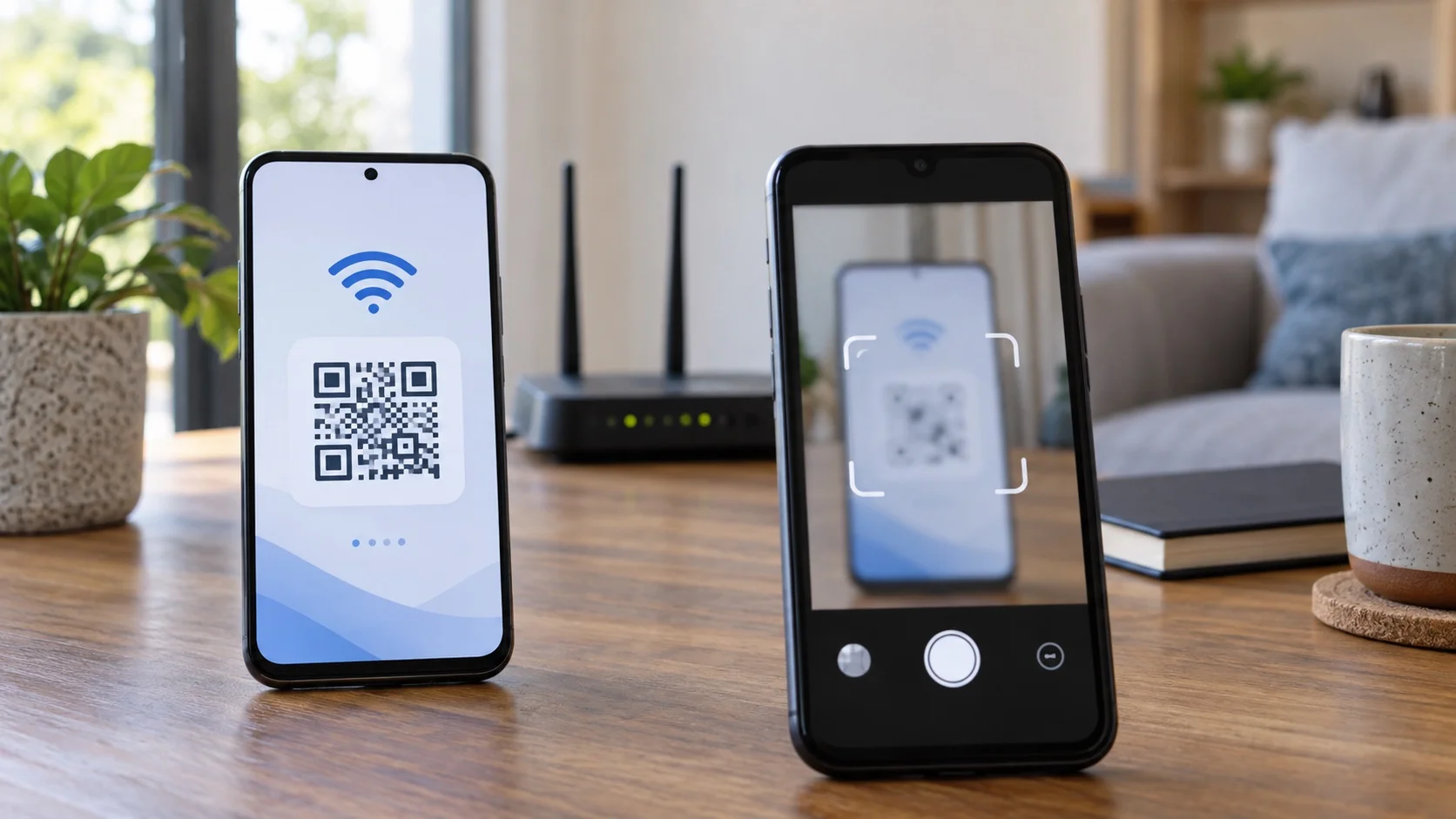
Android supports joining a Wi-Fi network by scanning a correctly formed QR code. Google’s Android Wi-Fi instructions describe scanning a shared code and generating one from an Android device. On the receiving phone, the camera, Google Lens or the QR option in Wi-Fi settings can usually scan the code, although labels vary by manufacturer.
If your iPhone’s Passwords app shows an option to display a network QR code, you can present it directly for the Android phone to scan. Availability depends on the iOS version and interface, so use the reveal-and-enter method if that control is absent. Avoid online QR generators for a private Wi-Fi password: the site could receive the network name and credential. An offline, trusted tool is safer if you administer a guest network and need a reusable printed code.
Why the Apple Share Password pop-up does not appear
Apple’s one-tap sharing flow has its own conditions: nearby Apple devices, Wi-Fi and Bluetooth enabled, appropriate account details in Contacts, and supported Apple software. An Android phone does not participate in that Apple-to-Apple contact flow, so waiting for the pop-up or repeatedly toggling Bluetooth usually will not solve this cross-platform task.
Use the password-viewing steps instead. If another iPhone, iPad or Mac is the recipient, follow Apple’s nearby Wi-Fi sharing guide. Keeping these two workflows separate prevents a common troubleshooting loop: the Apple dialog is convenient within its ecosystem, while a visible credential or compatible QR code is the practical bridge to Android.
Fix incorrect password and connection errors
Confirm that both phones are using the identical network name, especially if the router broadcasts separate 2.4 GHz, 5 GHz or guest names. Reveal the saved password again instead of relying on memory. On Android, forget the network and reconnect to clear an old credential. Restart Wi-Fi on both devices, move closer to the router and restart the router only if you are authorized to disrupt everyone using it.
If the iPhone is connected but its saved password no longer works elsewhere, the iPhone may be using an existing session after the router password changed, or the network may require device registration. Corporate networks can use certificates and usernames instead of a shared password. Public networks may connect first and then open a captive portal. In those cases, copying a password alone is not the complete enrollment process.
Share access without exposing your main network
For visitors, create a guest network in the router’s official app or administration page and share that credential instead of the password used by your household devices. A guest network can separate unfamiliar devices and can be disabled or changed without reconnecting every television, camera and computer in the home. Use WPA2 or WPA3 security and a long, unique password.
Change a shared credential if it was posted publicly, sent to the wrong person or displayed in a reusable QR code that left your control. Avoid using a personal name, address or phone number in the network name or password. Review our guide to setting up passkeys on iPhone, Android and Windows for a separate way to improve account security; a strong online account password does not replace proper router security.
What not to share
Do not reveal an employer’s, school’s, landlord’s or venue’s network password without authorization. Do not install a configuration profile or certificate sent by an unknown person to make Wi-Fi work. Profiles can change network and security settings, and a copied password is not worth granting broad device management access.
Also avoid screenshots that expose the password alongside identifying details. If you must send the credential remotely, use a private channel and delete the message when appropriate, while recognizing that deletion may not remove copies or notifications. For recurring visitors or rentals, a controlled guest network with a changeable password is easier to manage than repeatedly exposing the main network credential.
A quick checklist that works
On the iPhone, verify the correct network, reveal its password through Wi-Fi settings or the Passwords app, and authenticate locally. On Android, choose that exact network, enter the credential and test a webpage. If a trusted QR option is available on the iPhone, Android can scan it; otherwise, manual entry is both normal and reliable.
If connection fails, forget the network on Android, recheck capitalization, confirm the network type and move closer to the router. Use the administrator’s process for managed or captive-portal networks. The key is to use the cross-platform credential itself rather than wait for Apple’s nearby sharing pop-up. With a guest network and a carefully handled password, the whole exchange takes about a minute and does not require a third-party app.
Sources
- Find your saved Wi-Fi passwords on iPhone or iPad
Apple Support | Checked
- How to share your Wi-Fi password from your iPhone or iPad
Apple Support | Checked
- Connect to Wi-Fi networks on your Android device
Google Android Help | Checked
Editorial disclosure
Prepared with AI assistance using official Apple and Google support material reviewed September 20, 2026. The featured image is AI-generated; its abstract QR pattern is decorative and non-scannable.