Make an inventory before touching the new phone
A reliable phone switch begins before the transfer screen. List what must survive: contacts, calendar entries, photos, videos, messages, WhatsApp history, notes, downloaded files, voice recordings, authenticator accounts, health data and app-specific projects. Open the most important apps and identify whether their data syncs to an account, stays only on the phone or needs an export. A migration tool cannot transfer data that an app deliberately keeps inside its own system.
Check the old phone’s storage use and the free space on the new phone. Update both operating systems and the migration apps, charge both devices, connect to dependable Wi-Fi and keep a compatible cable nearby. Make a separate backup before starting. Android users can follow our Android backup checklist. Keep the old phone, its unlock code and account passwords available until every important category is verified.
Prepare accounts, security and phone service
Confirm that you can sign in to the Apple Account and Google Account involved in the move. Update recovery details and save one-time recovery codes somewhere off the phone. Authenticator apps, banking apps, work profiles, digital wallets, government identity apps and password managers often require their own transfer or re-enrollment. Process those instructions individually; discovering after a reset that the old phone was the only approved device can turn a routine move into account recovery.
Ask your carrier how the physical SIM or eSIM will move and when service on the old phone will stop. Do not erase the active phone merely because the new one shows signal. Test incoming and outgoing calls, SMS and mobile data. If either device belongs to a business or school, an administrator may restrict copying. Remove neither device from account dashboards until you know which one is needed to approve the next sign-in.
Move from Android to iPhone
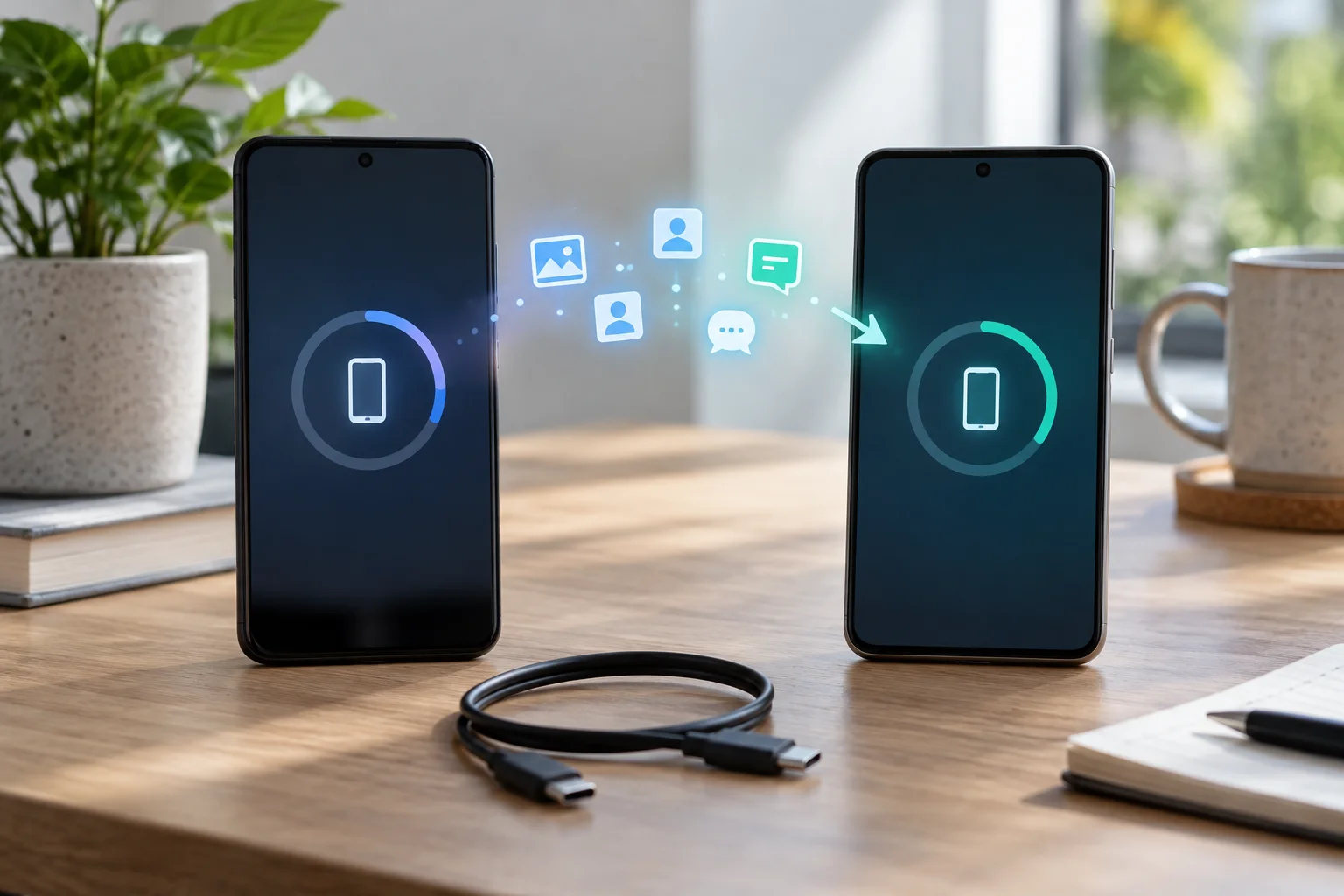
During new-iPhone setup, choose the option to transfer data from Android. Apple’s current migration guide directs most users to Move to iOS and also describes cable and, for compatible newer systems, app-free options. Keep both phones powered and close together, follow the displayed pairing steps, and select only the categories you need. A cable is often steadier for a large library, provided the connectors and permissions are correct.
Leave both phones alone while the iPhone’s progress bar runs, even if Android appears finished first. Apple lists contacts, messages, camera media, calendars, files, accessibility and display settings, web bookmarks, email accounts, call history, Voice Memos and supported WhatsApp content among transferable categories, while music, books and PDFs may need manual handling. Some free apps can be matched for later App Store download, but app availability and in-app data remain developer-dependent.
Move from iPhone to Android
Start the new Android phone and choose to copy data from an iPhone or iPad during setup. Google’s iPhone-to-Android instructions support cable transfer and, on compatible devices, the Android Switch app for wireless transfer. A cable usually exposes more categories and avoids a long wireless session. Unlock the iPhone, tap Trust if asked, choose the data types, and keep the connection in place until the process reports completion.
Google specifically tells switchers to turn off iMessage so future texts reach the Android phone instead of remaining in Apple’s system. Follow the new phone’s WhatsApp prompt if it appears and scan the displayed QR code as instructed; do not open and start using WhatsApp on the destination prematurely. Device makers can add their own migration tools, so prioritize the on-screen flow for the exact new phone over a video made for another brand or Android version.
Handle photos, chats and local files carefully
After the main transfer, compare counts rather than checking only the newest photo. Look at old years, edited images, hidden albums, screenshots, long videos and files saved by scanning or editing apps. Cloud photo libraries may display thumbnails before full-resolution files are available. Decide whether you are moving files, continuing cloud access or creating a second copy, because each choice affects storage and future deletions.
Open several long message threads and media attachments. SMS, RCS, iMessage and third-party chats use different systems, and a successful contact transfer says nothing about chat history. For WhatsApp or another messenger, follow its platform-specific migration path and confirm the destination account uses the intended phone number. Encrypted or disappearing conversations may have special limits. Export any irreplaceable local document that the migration report does not explicitly confirm.
Reinstall apps and rebuild secure access
App icons are not proof that app data moved. Open your password manager first, then sign into email and communication tools. Re-enroll authenticator accounts using each provider’s supported export, cloud restore or backup-code process. Check banking, payment, transit, health and smart-home apps one by one. Digital wallet cards commonly need fresh verification, and downloaded entertainment may need to be downloaded again because protected files do not simply copy across platforms.
Review permissions as you reinstall. A migration is a useful chance to deny location, contacts, microphone or background access that an app no longer needs. Confirm notification settings for security alerts, messaging and calendars. If moving to another Android device, Google’s Android-to-Android guide notes that transfer is usually offered during setup and may only be available once, which is another reason to prepare before tapping through.
Verify everything before erasing the old phone
Keep the old device intact for several days if practical. On the new phone, make calls, send and receive ordinary texts, open contacts, inspect calendars, download a full-resolution photo, play a video, open local files and authenticate to essential accounts. Compare notes and voice recordings. Check that cloud backup is now enabled for the destination. Only after this audit should you sign out, remove payment cards, disable activation locks where required and use the platform’s factory-reset procedure.
What if the transfer stops? Keep both devices charged, reconnect the cable or Wi-Fi, confirm free space and restart the official setup flow. If you already completed setup, the platform may require a reset to rerun the full migration, so copy any new destination data first. Will every app and purchase transfer? No; stores, subscriptions, licensing and local databases differ. The safest rule is simple: maintain the old phone and an independent backup until you have personally opened and checked the data you cannot replace.
Sources
- Move from Android to iPhone or iPad
Apple Support | Checked
- Copy apps and data from an iPhone or iPad to a new Android device
Android Help | Checked
- Copy apps and data from an Android to a new Android device
Android Help | Checked
Editorial disclosure
Prepared with AI assistance from official Apple and Google migration documentation checked September 15, 2026. Transfer options vary by phone, operating-system version, carrier, region and app; verify current on-screen instructions before erasing either device. The featured image is AI-generated with generic devices.